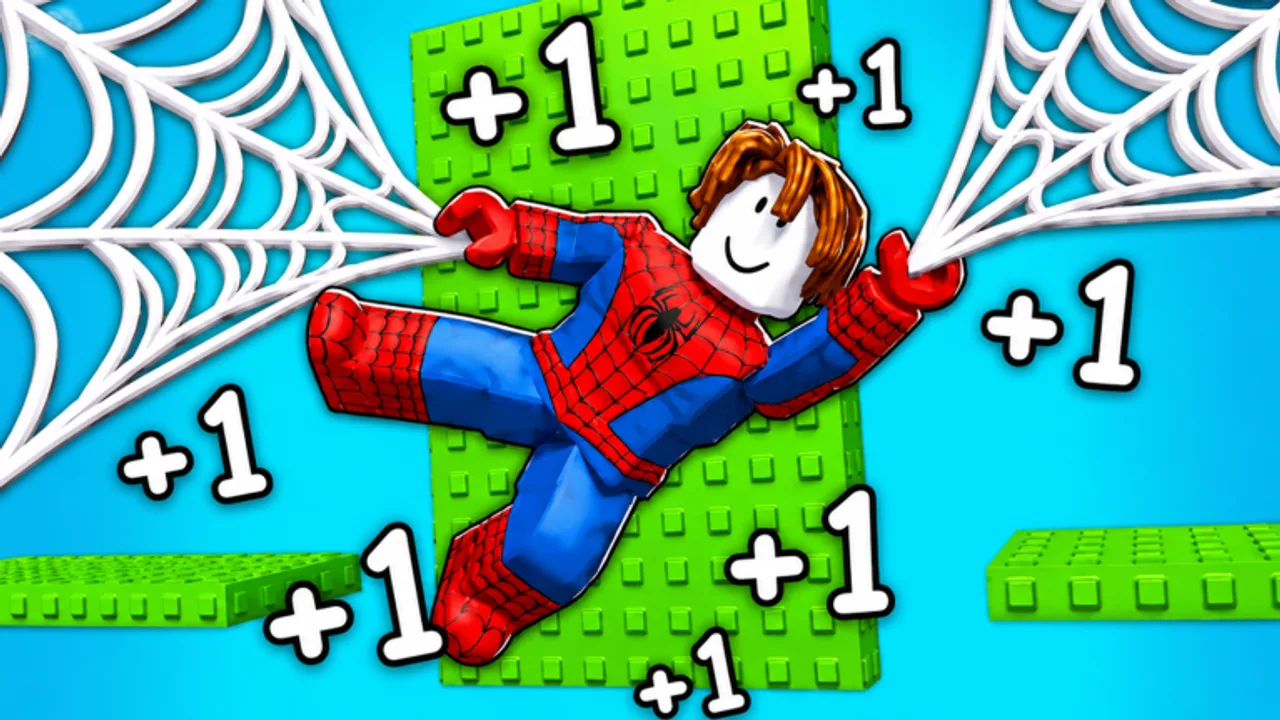
+1 Web Swing Escape Roblox Controls Guide
Every input you need to swing, jump, and escape.
This guide covers the controls for +1 Web Swing Escape on every platform. The game supports PC, mobile, and console through Roblox, and the core mechanics work the same way on all devices.
Movement Basics
Movement in +1 Web Swing Escape is built around three actions: running, jumping, and web swinging. Every movement action earns you +1 Speed passively, so the more you move, the faster your Speed stat grows.
PC Controls
On PC, the default Roblox controls apply:
- W, A, S, D — Move forward, left, backward, and right.
- Spacebar — Jump. Press again in mid-air for a double jump if available.
- Mouse — Aim your camera and web shooter direction.
- Left Click / Keybind — Fire your web shooter. The exact keybind depends on the game’s configuration, but it is typically a single button press or left mouse click.
- Right Click — Some configurations use right-click for alternate actions.
- Camera Movement — Move the mouse to look around. The camera follows your character and can be rotated freely.
Mobile Controls
On mobile, touch controls replace keyboard inputs:
- Virtual Joystick — Appears on the left side of the screen. Drag to move your character.
- Jump Button — Tap the jump icon on the right side of the screen.
- Web Shooter Button — Tap the web shooter icon to fire. This is usually a large, prominent button on the screen.
- Camera — Swipe on the right side of the screen (outside the joystick area) to rotate the camera.
Mobile controls are less precise than PC, but the game is fully playable on touch devices. Slower, more deliberate inputs work better than fast swipes.
Console Controls
On Xbox and PlayStation through Roblox:
- Left Stick — Move your character.
- Right Stick — Rotate the camera.
- A / X Button — Jump.
- Right Trigger / R2 — Fire web shooter (exact binding may vary).
- Camera — Right stick controls camera rotation.
Web Shooter Mechanics
The web shooter is your primary movement tool. Here is how it works:
- Aim — Point your camera toward a surface you want to attach to.
- Fire — Press the web shooter button. A web line connects your character to the target surface.
- Swing — Your character swings along the arc of the web line. Momentum carries you forward.
- Release — The web detaches automatically at the end of the swing, or you can release early by pressing the button again.
Tips for Better Web Shooting
- Aim high. Attaching to elevated surfaces gives longer swings and more distance.
- Time your releases. Releasing at the peak of your swing arc maximizes forward momentum.
- Chain swings. Fire the next web immediately after releasing the previous one. This maintains momentum.
- Do not aim at the ground. Ground attachments give short, low swings that slow you down.
Jumping
Jumping is used for:
- Crossing small gaps — Jump across without needing a web shooter.
- Starting a swing — Jump before firing a web to gain height.
- Landing on platforms — Control your descent by timing your jump.
In +1 Web Swing Escape, jumping and web shooting work together. The most efficient movement pattern is: run → jump → fire web → swing → release → land → repeat.
Camera Control
Good camera control is essential for web shooting. Keep these tips in mind:
- Look where you want to swing. The web shooter fires in the direction your camera faces.
- Keep the camera moving. A static camera means you cannot see upcoming obstacles or attachment points.
- Use wide angles. Pull the camera back to see more of the course ahead.
Platform Differences
The core mechanics are identical across platforms. The only difference is input precision:
- PC — Most precise. Mouse aiming makes web shooting fast and accurate.
- Console — Good precision. Stick aiming is slightly slower than mouse but still effective.
- Mobile — Least precise. Touch controls work but require more deliberate inputs.
Regardless of platform, practice builds muscle memory. The more you play, the more natural the controls feel.
For tips on avoiding input mistakes, see Beginner Mistakes. For a full course-by-course guide, check Walkthrough. For Speed optimization, visit How to Get Speed Fast.
Frequently Asked Questions
Quick answers to the most common questions.
Can I change the keybinds?
Roblox allows custom keybinds through its settings menu. The in-game controls follow Roblox's standard layout, which you can remap in Roblox settings.
Is PC better than mobile for this game?
PC offers more precise controls, especially for web aiming. Mobile is fully playable but requires more deliberate inputs. Console falls in between.
How do I aim the web shooter?
Point your camera in the direction you want to attach. On PC, use the mouse. On mobile and console, use the right stick or swipe gesture. The web fires where your camera faces.
Do controls change at higher Speed?
The controls remain the same, but your character moves faster. This makes precise inputs more challenging at high Speed values.